Installation
Getting Nveal up and running is quick. You can install it via NPM for modern build pipelines or use a script tag for simpler setups.
Then import it in your application:
Then import it in your application:
Quick Start
After installation, initialize the SDK as early as possible in your application's lifecycle to capture the entire session.
import { nveal } from '@nveal/browser';

// Initialize and start recording
nveal.init({
  apiKey: 'REPLACE_WITH_YOUR_API_KEY',
  metadata: {
    environment: 'production'
  }
});
Using Your API Key
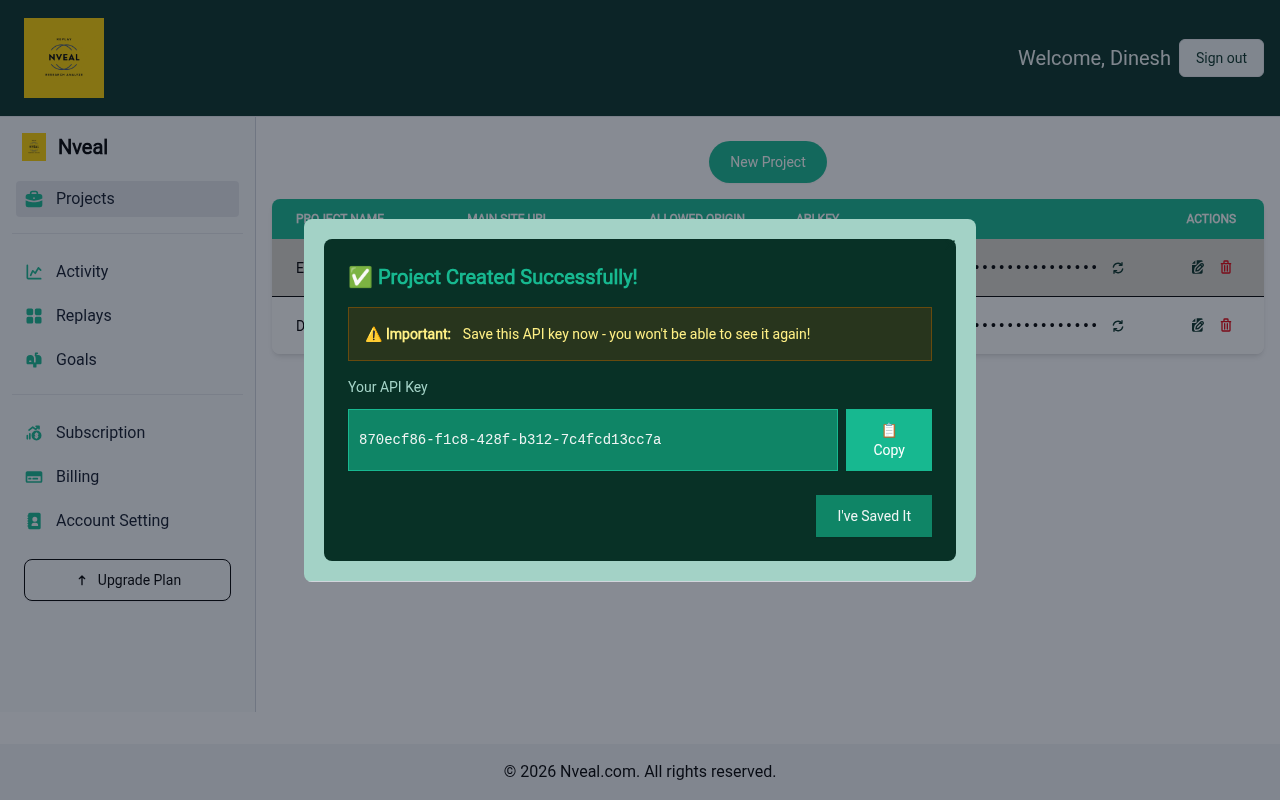
When you create a new Project in the Dashboard, you are prompted to copy your unique API Key. Use this key in your SDK configuration.
Lost your API Key?
Don't worry! You can easily regenerate a new API key for your project at any time from the Project list in the dashboard. Just click the refresh icon next to your project's masked API Key.

Keep your API key secure.
If you believe your key has been compromised, rotate it immediately using the regenerate button. Note that regenerating a key will instantly invalidate the old one, and you will need to update your application code.