Step 4: Create a Project & Get API Key
To begin capturing data, you need to create a Project. A Project represents a single application or website environment. Each project generates a unique API Key that is permanently tied to it.
Creating Your First Project
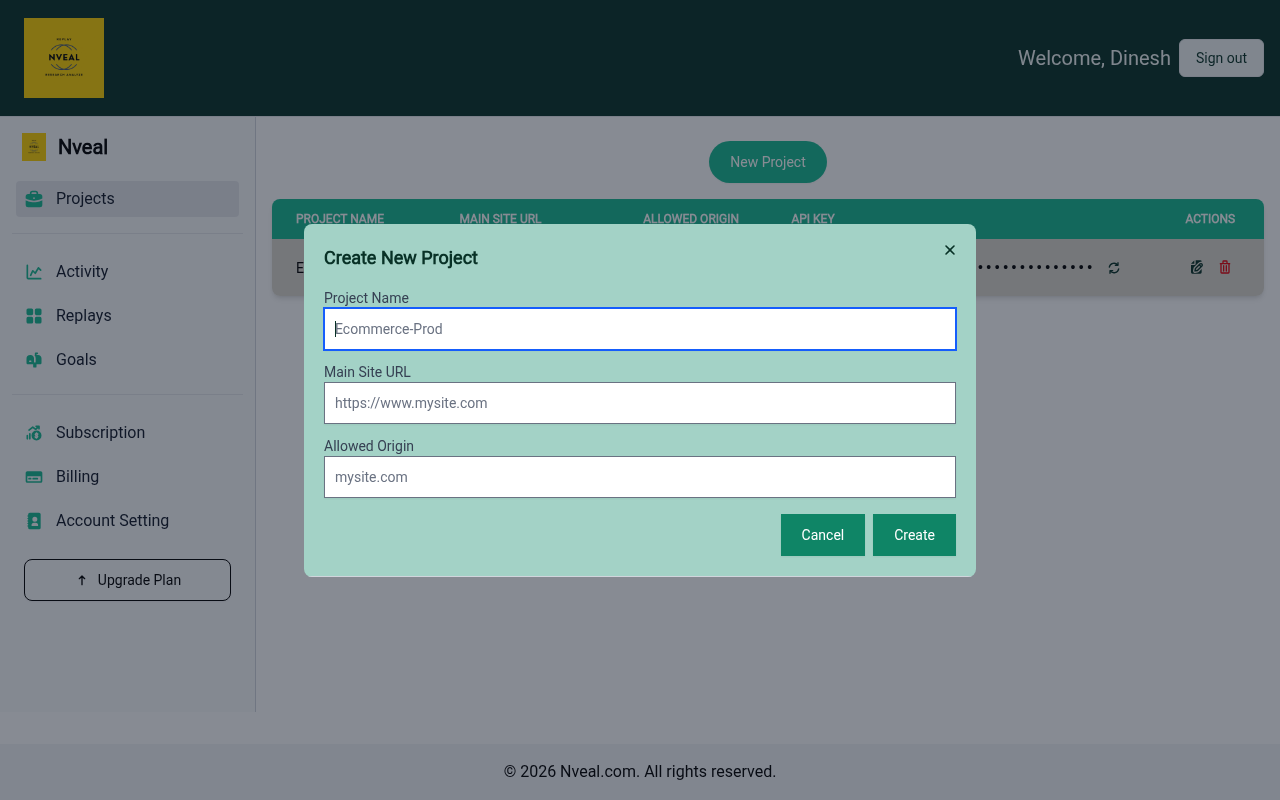
- In the dashboard, click on the New Project button to open the creation modal.
- You will see three fields to fill out:
Project Name: A descriptive name for your project (e.g., "My SaaS App - Production").
Description: A short optional description to help your team understand the project's purpose.
Allowed Domain: The domain where the Nveal SDK will be installed (e.g.,app.yourdomain.com). - Click Create Project.
Warning
Domain Matching is Critical! Nveal uses the domain you configure here as a security measure during the API Key check. When the SDK sends session data to the Nveal API, the API strictly verifies that the origin domain of the request matches the Allowed Domain configured for the project. If they do not match, the API will reject the payload and throw an error.
Tip
- If you are testing locally, ensure you add
localhostor127.0.0.1as an allowed domain during development.*
Your API Key
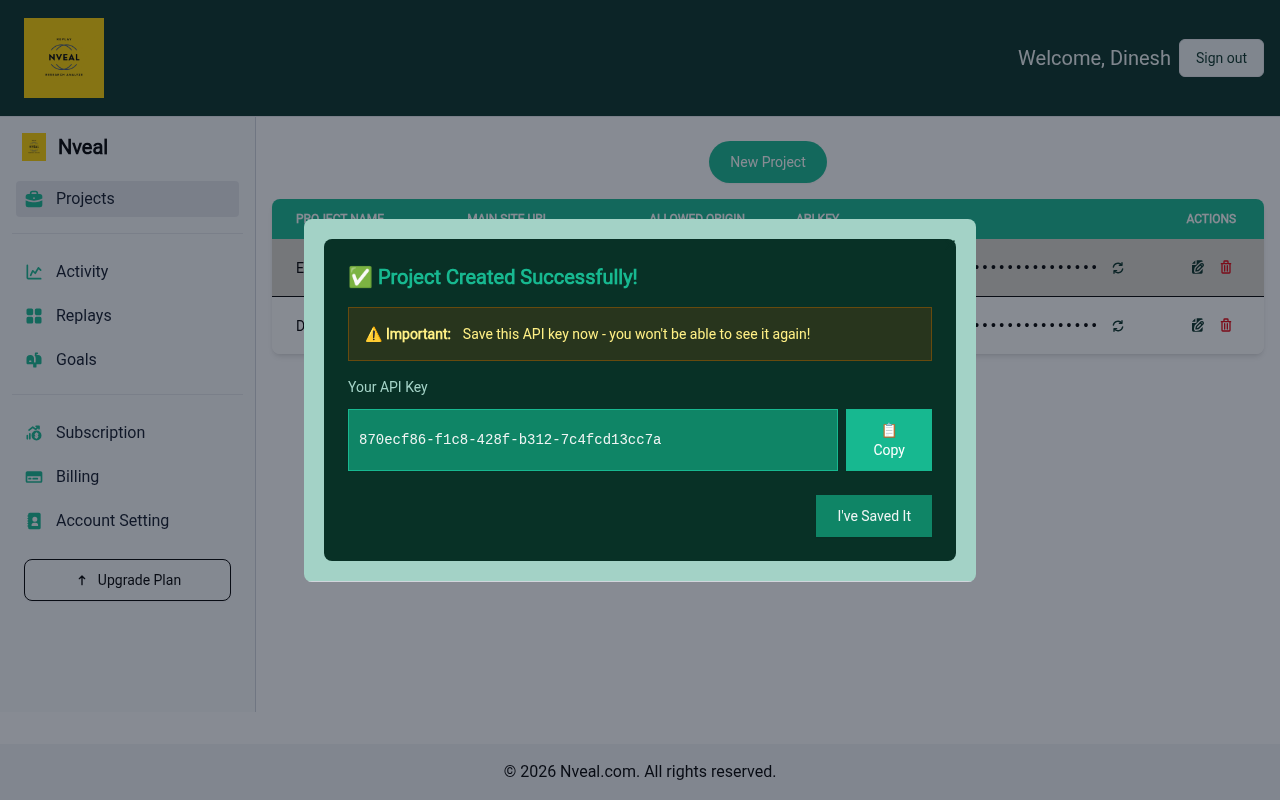
As soon as the project is created, your API Key is generated and displayed on the screen.
Tip
Forgot to copy your key? Don't worry! You can easily regenerate a new API key for this project at any time from the Project Settings page.
Warning
Your API Key acts as the identifier for your project. While it is safe to be exposed in your frontend code (as the domain matching prevents cross-site abuse), you should still rotate it if you believe your project settings have been compromised.
Keep this API Key handy; you will need it in the next step to configure the SDK!